Free cookie consent management tool by TermsFeedAktualizacja preferencji plików cookie

Kowal Analytics for Magento 2

€30.75 €25.00
COMPOSER Installation
M2-ANALIZA
Requires changes to the template
No
Minor changes
Significant changes
Requires programming knowledge
No
Basic
Advanced
Difficulty in configuration
Impact on performance
Compliance with Magento standards
  • Polnisch Polnisch
  • English English
  • 2.4.9
  • 2.4.8
  • 2.4.7
  • 2.4.6
  • 2.4.5
  • 2.4.4
  • 2.4.3
  • 2.4.2
  • 2.4.1
  • 2.4.0
  • 2.3.7
  • 2.3.6
  • 2.3.5
  • 2.3.4
Current version of the module v1.1.18

What is this module

Kowal Analytics is a sales attribution module for Magento 2. Its purpose is to show which store elements actually affect the cart, order, and revenue.

This is not a regular pixel that collects page views. The module analyzes the full sales context:

  • which area was displayed,
  • which object in that area was clicked,
  • from which page or product the user started the interaction,
  • which product was added to the cart,
  • which SKU was ultimately purchased,
  • which revenue should be attributed to that path.

Thanks to this, the store can answer questions that standard analytics usually do not answer:

  • Which related products sections actually sell?
  • Which upsell and cross-sell blocks generate revenue?
  • Which blog posts lead to product sales?
  • Which banners, widgets, or CMS sections are only clicked but do not convert?
  • Which page elements take up space but have no impact on sales?

What is the business value

The module was created for stores that want to optimize merchandising, content, and page layout based on real impact on sales, not just traffic or CTR.

From the reports, you can evaluate:

  • revenue per area,
  • number of orders per area,
  • performance of specific objects within a given area,
  • performance of the relationship product -> clicked product -> purchased SKU,
  • the blog's impact on sales,
  • the impact of first click, last click, assisted share, and view-through,
  • source paths leading to a purchase.

What makes this module different from simple analytics pixel solutions

1. It measures sales, not just views and clicks

A click alone says nothing about business value. Kowal Analytics connects frontend events with the cart, order, and revenue.

2. It works with the concept of area

The basic unit of analysis is an area, meaning a defined part of the page that you want to measure.

Examples:

  • related_products on PDP,
  • upsell_products on PDP,
  • crosssell_products in the cart,
  • category_listing on the category product list,
  • search_results on search results pages,
  • wishlist_products,
  • compare_products,
  • blog_post_listing,
  • blog_sidebar_categories,
  • a custom promotional box in CMS.

3. It also lets you analyze object

Each area contains specific object items, meaning the elements the user sees and clicks.

Examples:

  • a product in the related_products section,
  • a blog post in a post list,
  • a blog category in the sidebar,
  • a promotional banner,
  • a CTA link in a marketing box.

This means the report does not stop at the level of:

  • the related section works

but goes down to the level of:

  • product X in the related section sells best
  • blog post Y leads to the highest number of orders

4. It knows the source context

The module also stores the source context, meaning where the path started.

Example:

  1. the user is on the Affirm Water Bottle product page,
  2. sees related_products,
  3. clicks Zing Jump Rope,
  4. goes to that product's PDP,
  5. adds it to the cart,
  6. and ultimately purchases Zing Jump Rope.

In that case, you can show:

  • source page = Affirm Water Bottle,
  • area = related_products,
  • clicked object = Zing Jump Rope,
  • purchased sku = Zing Jump Rope.

This is exactly the level of analysis that is usually missing in typical tools.

How to understand the most important concepts

Area

Area is a section or block of the page that you want to measure as a source of sales impact.

Examples:

  • a related products section,
  • a category listing,
  • a blog widget,
  • a blog sidebar,
  • a promotional banner,
  • a popup,
  • a custom CMS block.

Object

Object is a specific element inside an area.

Examples:

  • a single product in a list,
  • a single blog post,
  • a single blog category,
  • a single tag,
  • a single slide in a slider,
  • a single banner in a promotional section.

Source Page

Source Page is the page from which the user started the path related to a given area.

Examples:

  • the source product page for related_products,
  • a blog post for a link leading to a product,
  • a category listing for a product click,
  • search results for a clicked product.

Purchased SKU

This is the specific SKU that was purchased and to which we attribute the impact of a given area or object.

Which areas can be measured

The module supports both native integrations and areas defined by selectors.

Examples in e-commerce

  • related_products
  • upsell_products
  • crosssell_products
  • category_listing
  • search_results
  • wishlist_products
  • compare_products

Examples in content commerce

  • blog_post_listing
  • blog_recent_posts_widget
  • blog_sidebar_recent_posts
  • blog_sidebar_categories
  • blog_sidebar_tags
  • blog_post_view

Custom examples

  • homepage_promo_box
  • black_friday_banner
  • summer_campaign_slider
  • ai_recommendations
  • category_top_cta

Which reports the user gets

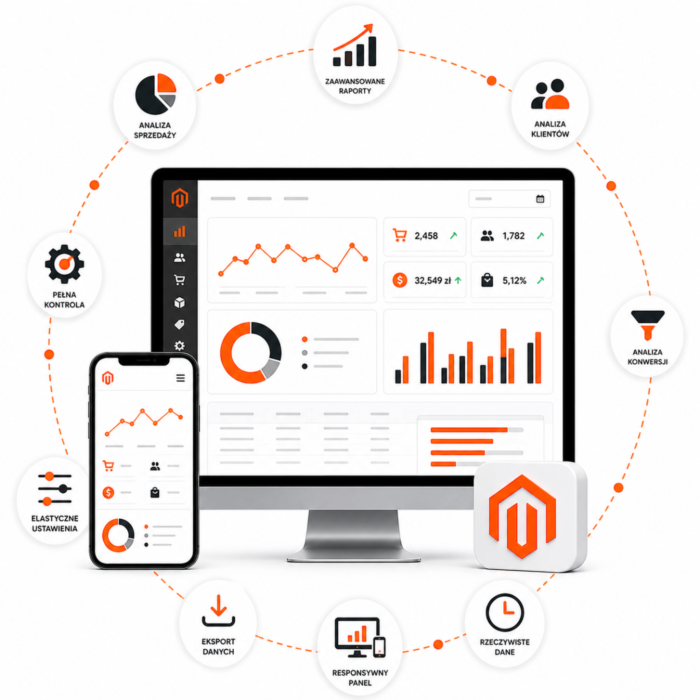
Analytics Dashboard

Used for a quick results overview.

It shows, among other things:

  • attributed revenue,
  • attributed orders,
  • CTR,
  • top areas,
  • top supported products,
  • top blog sources.

Area Report

Answers the question:

  • which area works,
  • which objects in it sell,
  • which sources generate sales.

Example:

  • related_products generates 12 orders and 4 800 PLN in revenue,
  • the best-selling product is WB05-S-Orange,
  • the most common source for this path is the Affirm Water Bottle product.

Product Context Report

This report is key for product areas.

It answers the question:

  • from which source product,
  • which product was clicked,
  • and what was ultimately purchased.

Example:

  • source product = Affirm Water Bottle,
  • clicked object = Zing Jump Rope,
  • purchased sku = Zing Jump Rope,
  • orders = 7,
  • revenue = 840 PLN.

Blog Commerce Report

Shows the blog's impact on sales.

It answers the questions:

  • which post sells,
  • which blog category sells,
  • which tag leads to orders,
  • which SKU items are purchased after entering from the blog.

Example:

  • the post How to choose a training water bottle generated 9 orders,
  • the most frequently purchased SKU after that post is Affirm Water Bottle.

Object Report

Lets you drill down into one specific object.

Example:

  • one specific product in related_products,
  • one specific blog post in blog_post_listing,
  • one specific blog category in the sidebar.

The report shows:

  • clicks,
  • orders,
  • revenue,
  • source pages,
  • purchased SKU items related to that one object.

Source Page Report

This is a reverse-perspective report.

Instead of looking at the object, you look at one source page and check:

  • which clicked objects from that page sell,
  • which SKU items are later purchased,
  • how much revenue that specific page generated as the starting point of the path.

Example:

  • the Affirm Water Bottle product page as the source page,
  • the best-selling objects from that page are two products from related_products,
  • the total revenue from that path is 1 350 PLN.

Typical use cases

Merchandising optimization

The store can compare whether:

  • related_products sells better than upsell_products,
  • cross-sell in the cart really closes sales,
  • the category listing leads users to products that actually end in an order.

Blog analysis

The content team can check:

  • which posts lead to PDP,
  • which posts help add a product to the cart,
  • which posts have a real impact on sales.

Store layout cleanup

If a section has high impressions and low or zero impact on revenue, you can assess whether it should:

  • be improved,
  • be moved,
  • have its content replaced,
  • or be removed completely.

Testing changes

After changing the layout, widget, blog, or recommendation mechanism, you can compare:

  • the earlier and later period,
  • the impact on CTR,
  • the impact on orders,
  • the impact on revenue.

Who this module is for

It provides the most value to:

  • Magento store owners,
  • e-commerce managers,
  • merchandisers,
  • CRO teams,
  • content and SEO teams,
  • agencies developing Magento stores.

Summary

Kowal Analytics turns storefront elements into measurable sales sources.

It lets you move from the general question:

  • does this block work?

to the specific question:

  • which exact product, post, category, or source page generates sales and how much revenue stands behind it?

Kowal Analytics Installation Guide

Requirements

Before installation, make sure that:

  • the Magento 2 instance is running correctly,
  • Composer has access to the Kowal package repository,
  • you have CLI access to bin/magento,
  • cron and queue consumers can run in the environment,
  • the environment can correctly write to the database and to var/log.

Installation via Composer

Add the Composer repository:

composer config repositories.kowal composer https://repo.kowal.store

Add credentials for the private repository:

composer config http-basic.repo.kowal.store  

Install the module:

composer require kowal/module-analytics

Enabling the module

Run the standard Magento commands:

bin/magento module:enable Kowal_Analyticsbin/magento setup:upgradebin/magento cache:flush

If the store runs in production mode, also execute:

bin/magento setup:di:compilebin/magento setup:static-content:deploy -fbin/magento cache:flush

Starting asynchronous processes

The module uses queues and asynchronous processing. Without them, the dashboard and reports will not be complete.

Start the required consumers:

bin/magento queue:consumers:start kowal_analytics.raw_eventsbin/magento queue:consumers:start kowal_analytics.conversionbin/magento queue:consumers:start kowal_analytics.attribution

Magento cron must also work correctly because the module uses retry and backfill for attribution.

Basic check:

bin/magento cron:run

What happens after installation

After correct installation, the module:

  • loads the tracker on the storefront,
  • saves frontend events,
  • binds the analytics session to the quote,
  • transfers analytics identifiers to sales_order,
  • saves conversions and conversion items,
  • calculates order attribution for area and object,
  • provides a dashboard and detailed reports in the Magento admin panel.

Where to check if the module works

After installation, check:

  • Kowal -> Analytics -> Dashboard
  • Stores -> Configuration -> Analytics

If the module is active correctly, you should see:

  • the module dashboard,
  • a summary widget on the native Magento dashboard,
  • a configuration section in Stores -> Configuration.

Recommended technical test after deployment

Perform a simple end-to-end test:

  1. Open the store page.
  2. Go to a product page.
  3. Click a tracked element, for example a product in related_products or a blog post.
  4. Add the product to the cart.
  5. Place an order.
  6. Check whether events, conversions, and attribution were saved.

If debug is enabled, check:

  • logs in the browser console,
  • var/log/kowal_analytics_debug.log

What is worth checking in HTML

If you want to confirm that tracking works on page render, check for the presence of these attributes:

  • data-kowal-track-area
  • data-kowal-track-area-id
  • data-kowal-track-object
  • data-kowal-track-id
  • data-kowal-track-sku

Example:

  • the related_products section container should have data-kowal-track-area='related_products'
  • a single product in that section should have data-kowal-track-object='product' and its own data-kowal-track-id

Common issues after installation

The dashboard is visible, but there is no data

Check:

  • whether consumers are running,
  • whether cron is running,
  • whether analytics is enabled in the configuration,
  • whether the tracker loads on the frontend,
  • whether there are actually tracked areas on the page.

Events are being saved, but attribution is incomplete

Check:

  • whether the kowal_analytics.attribution consumer is running,
  • whether cron retry is working,
  • whether source events reach the database before the final attribution calculation.

Custom area does not appear in reports

Check:

  • whether the area definition was saved correctly,
  • whether the selectors match the real DOM,
  • whether runtime apply adds data-kowal-track-*,
  • whether the given area has object identifiers needed for further analysis.

Deployment recommendation

The safest order is:

  1. install the module,
  2. start consumers and cron,
  3. enable debug,
  4. test one simple product scenario,
  5. check the dashboard,
  6. only then extend tracking to custom areas.

Kowal Analytics Configuration Guide

Navigation in the admin panel

Main entry points to the module:

  • Kowal -> Analytics -> Dashboard
  • Stores -> Configuration -> Analytics

Configuration structure

Currently, the module provides three main groups of settings.

1. General

Path:

  • Stores -> Configuration -> Analytics -> General

Field:

  • Enable Analytics

Meaning:

  • enables or disables frontend tracking and further analytics processing for the selected scope.

Recommendation:

  • it is best to enable it per store view after verifying that trackers and consumers are working correctly.

2. Debug

Path:

  • Stores -> Configuration -> Analytics -> Debug

Fields:

  • Enable Backend Debug Log
  • Enable Frontend Console Log

Meaning:

  • backend debug saves technical logs to:
    • var/log/kowal_analytics_debug.log
  • frontend debug saves tracker logs to the browser console.

Use cases:

  • installation,
  • QA,
  • error analysis,
  • selector assistant tests,
  • confirmation that events reach the pipeline.

Recommendation:

  • enable it during deployment and testing,
  • disable it in the production environment after validation is completed.

3. Tools

Path:

  • Stores -> Configuration -> Analytics -> Tools

Field:

  • Enable Frontend Selector Assistant

Meaning:

  • shows a helper on the storefront that helps indicate and prepare configuration for custom selector-based areas.

Use cases:

  • custom section mapping,
  • DOM structure analysis,
  • preparing area definitions without manual code editing.

How to understand the configuration in practice

Scope

The module works within Magento scope, so the configuration can differ for:

  • default,
  • website,
  • store view.

It is safest to treat the module as a per-store-view tool because:

  • different stores may have a different layout,
  • different stores may have different blog, CMS, and merchandising sections,
  • per-store-view reports are much more reliable operationally.

How to understand the basic concepts in the module

Area

Area is a defined part of the page that you want to measure as a source of sales impact.

Examples:

  • related_products
  • upsell_products
  • crosssell_products
  • category_listing
  • search_results
  • wishlist_products
  • compare_products
  • blog_post_listing
  • blog_sidebar_categories
  • homepage_promo_box

Object

Object is a specific element inside an area.

Examples:

  • a single product in a list,
  • a single blog post,
  • a single blog category,
  • a single tag,
  • a single banner,
  • a single slide.

Source Page

Source Page is the page from which the user started an interaction that later led to a sale.

Examples:

  • the source product page for related_products,
  • a blog post for a clicked product,
  • a category listing for a clicked product,
  • search results for a product.

Dashboard and reports

Analytics Dashboard

This is the main overview screen. It shows:

  • attributed revenue,
  • attributed orders,
  • average order value,
  • CTR,
  • top areas,
  • top supported products,
  • top blog sources,
  • links to detailed reports.

This screen answers the question:

  • what works best

Area Report

This report answers the questions:

  • which area generates revenue,
  • which objects in that area sell,
  • which source page drives sales.

Example:

  • related_products has 18 orders,
  • Zing Jump Rope sells best there,
  • the most common source for that path is the Affirm Water Bottle product page.

Product Context Report

This is a report for product areas such as:

  • related_products
  • upsell_products
  • crosssell_products
  • category_listing
  • search_results

It shows the relationship:

  • source product -> clicked object -> purchased SKU

Example:

  • the user is on the PDP of Affirm Water Bottle,
  • clicks WB05-S-Orange in related_products,
  • and buys WB05-S-Orange.

Blog Commerce Report

This is a report for blog areas:

  • blog_post_listing
  • blog_recent_posts_widget
  • blog_sidebar_recent_posts
  • blog_sidebar_categories
  • blog_sidebar_tags
  • blog_post_view

It answers the questions:

  • which post sells,
  • which blog category sells,
  • which tag supports sales,
  • which SKU items are purchased after entering from the blog.

Object Report

This is a report for one specific object.

Example:

  • one product in related_products,
  • one blog post from blog_post_listing,
  • one blog category from blog_sidebar_categories.

It shows:

  • how many impressions it had,
  • how many clicks it had,
  • how many orders it generated,
  • what revenue was attributed to it,
  • which source pages those paths came from.

Source Page Report

This is a report for one specific source page.

Example:

  • the Affirm Water Bottle product page,
  • the blog post How to choose a training water bottle,
  • the Running Shoes category listing.

It shows:

  • which clicked objects from that page sell,
  • which SKU items are purchased after entering from that page,
  • how many orders and how much revenue that specific page generates as the starting point of the path.

Attribution models

Available models:

  • Last Click
  • First Click
  • Assisted
  • View Through

How to read them:

Last Click

Best for the question:

  • which element directly closed the sale.

First Click

Best for the question:

  • which element started the path leading to a purchase.

Assisted

Best for the question:

  • which element participated in the path, even if it was not the last click.

View Through

Best for the question:

  • whether the section exposure itself had an impact on sales, even without a click.

Custom area configuration

You can prepare a custom area through the Frontend Selector Assistant.

Typical workflow:

  1. Enable Enable Frontend Selector Assistant.
  2. Open the storefront.
  3. Launch the assistant.
  4. Select the area.
  5. Check the suggested container selector.
  6. Check the suggested item selector.
  7. Check the link selector.
  8. Save the definition.
  9. Confirm that runtime apply added data-kowal-track-*.
  10. Test the click and the path to reports.

Custom area example

Assume you have a promotional box with three tiles on the homepage.

You can define:

  • area_code = homepage_promo_box
  • object_type = promotion
  • container_selector = .homepage-promo
  • item_selector = .homepage-promo__item
  • link_selector = .homepage-promo__link

Then the report will show:

  • which tile was clicked,
  • which one led to a purchase,
  • how much revenue it generated.

Testing workflow after configuration

The most sensible sequence:

  1. enable analytics,
  2. enable backend debug,
  3. enable frontend console log,
  4. go through a user scenario,
  5. check the dashboard,
  6. check the area report,
  7. drill down to the object report or source page report,
  8. disable debug after confirming correctness.

Operational recommendations

  • keep consumers under supervisor or systemd,
  • make sure Magento cron runs continuously,
  • after theme changes, check whether custom area selectors still match the DOM,
  • after merchandising changes, compare results per area,
  • do not treat CTR alone as success without checking revenue and orders.

Questions and Answers

Question
Does the module allow monitoring customer behavior in real time (visits, clicks, user paths)?
Answer
Yes — the module is described as “advanced analytics tools for Magento 2: monitor customer behavior in real time, analyze visits, conversions, and user actions”.
Question
Can I generate sales and conversion reports, as well as compare results over a specific period of time?
Answer
Yes — the analytics functionality includes the ability to analyze conversions and user actions, which makes it possible to create time-based reports and compare the effectiveness of marketing campaigns.
Question
Does the module integrate with external tools, e.g., Google Analytics, advertising pixels, or other marketing tools?
Answer
Yes — the store description mentions that modules in the “Analytics” category enable integration with analytics tools and monitoring of user activities.
Question
Does installing the module require modifying Magento core files or the store theme?
Answer
No — although the module’s detailed description does not state this information directly, by default modules offered by the Kowal store as Magento 2 extensions are intended to work without modifying core files.
Question
Does the module support Magento 2 environments with multiple stores (multi-store) and multiple languages?
Answer
Yes — as an analytics module designed for Magento 2, it can work in multi-store environments, although it is worth checking the technical documentation to be sure.
Question
Does this affect the performance of the store website—for example, can real-time data collection slow it down?
Answer
Collecting advanced data may have an impact—although the module refers to real-time monitoring, it is worth performing a performance test in a test environment and paying attention to the configuration.
Question
Can I set my own filters or analysis conditions (e.g., the behavior of customers from a specific group, B2B customers, specific categories)?
Answer
Although the description does not provide details about filtering, advanced analytics modules usually offer the ability to create segments and analysis conditions — it is worth checking the product documentation.
Question
Does the module provide automatic sending of reports or notifications (e.g., monthly) to the administrator?
Answer
The description does not specify this feature — if automatic reports or notifications are important to you, it is recommended to ask the manufacturer about the availability of this option.
Question
Is the module compatible with Magento 2 versions (e.g., 2.3.x or 2.4.x)?
Answer
Yes — compatibility details are not listed exactly in the description, but a module that is part of the Magento 2 store offering usually supports the latest versions of the platform; it is always worth confirming compatibility.
Question
Do I receive technical support and updates after purchasing the module?
Answer
Yes — as a Kowal store module in the “Analytics” category, it is covered by standard support and updates.
Write Your Own Review
You're reviewing:Kowal Analytics for Magento 2
Your Rating
Products